> For the complete documentation index, see [llms.txt](https://ios-course.cornellappdev.com/llms.txt). Markdown versions of documentation pages are available by appending `.md` to page URLs; this page is available as [Markdown](https://ios-course.cornellappdev.com/course-content/week-6-or-mvvm-createml-and-coreml/a4-chefos-swiftui.md).
# A4: ChefOS - SwiftUI
Original project authored by Vin Bui, adapted to SwiftUI by Daniel Chuang
{% hint style="danger" %}
**Due: Monday May 4th, 2026 11:59 pm**
{% endhint %}
{% hint style="info" %}
**For this assignment, please make a blank SwiftUI project. We're starting from scratch! Make sure to submit via your Cornell repo though, more info below**
{% endhint %}
## Overview
***
In this assignment, you will be creating a recipe book app. You will be able to fetch recipes from a server, and filter by category
## Academic Integrity
***
As with any other course at Cornell, the Code of Academic Integrity will be enforced in this class. All University-standard Academic Integrity guidelines should be followed. This includes proper attribution of any resources found online, including anything that may be open-sourced by AppDev. The University guidelines for Academic Integrity can be found [here](https://theuniversityfaculty.cornell.edu/academic-integrity/).
**This assignment can be done with ONE partner.** You are also free to come to the instructors or any course staff for help. Programming forums like *Stack Overflow* or *Hacking with Swift* are allowed as long as you understand the code and are not copying it exactly. **The majority of code (excluding external libraries) must be written by you or your partner.** Code written through AI means such as ChatGPT is **NOT ALLOWED**. However, you may use these resources for assistance, although we highly encourage consulting Ed Discussion or office hours instead.
## Getting Help
***
If you are stuck or need a bit of guidance, please make a post on Ed Discussion or visit [office hours](/course-content/office-hours.md). **Please do not publicly post your code on Ed Discussion.**
## Grading Rubric
***
{% hint style="info" %}
**Due to the shrinking of the course, the features implemented up to the midpoint submission will be worth more than after.**
{% endhint %}
The feedback form link is located in the [Submission](#submission) section of this handout.
* `UI`: implements the user interface
* `F`: implements the functionality
* `EC`: extra credit
| **PART I: Recipe CollectionView** | **\_ / 5** |
| ----------------------------------------------------------------------------------------------------------------- | -------------------------------------------------- |
| UI: Name, Image, Rating | \_ / 2 |
| UI: 2 columns, Dynamic number of cells (adding a new item to the array creates a new item/cell) | \_ / 2 |
| UI: Each cell is unique and represents a different Recipe | \_ / 1 |
| **PART II: Detailed Recipe View** | **\_ / 5** |
| UI: Image | \_ / 1 |
| UI: Name and Description | \_ / 1 |
| F: Tapping on a Recipe cell pushes a detailed view | \_ / 3 |
| **PART III: Filtering** | **\_ / 5** |
| UI: Collection view for filters WITH horizontal scrolling | \_ / 1 |
| UI: Selected filter is highlighted (separate from functionality) | \_ / 2 |
| F: Tapping on a filter filters the recipe data (one filter at time; stacking filters is extra credit) | \_ / 2 |
| **PART IV: Fetching Recipes** | **\_ / 2** |
| F: GET Request to Fetch Recipes | \_ / 2 |
| **PART V: Bookmark Recipes** | **\_ / 1** |
| F: Bookmarking from the detailed view updates the collection view using delegation | \_ / 1 |
| **OTHER** | **\_ / 2** |
| Feedback Survey | \_ / 1 |
| `.onAppear` or `.task` calls networking functions | \_ / 1 |
| **SUBTOTAL** | **\_ / 20** |
| EC: Custom back button | + 1 |
| EC: Stacking filters | + 1 |
| EC: Nesting collection views | + 1 |
| EC: Separate bookmark page | + 2 |
| Deduction: Crash Tax | -1 point |
| **GRAND TOTAL** | **\_ / 20 (+5)** |
## Getting Started
***
### Using Postman
You are encouraged to use [Postman](https://www.postman.com/) to test out HTTP requests. Please take a look at the [Postman guide](/resources/tool-guides/postman.md).
### Using Figma
Similar to A2 and A3, we will be using Figma for the design sketches. You can find the link to the Figma [here](https://www.figma.com/file/rCPlphpMKQZDLFIld6x0Cj/A4%3A-ChefOS?type=design\&node-id=1%3A23\&mode=design\&t=Ms5BRPZtDqKdt41m-1). If you do not have an account, you can create one under your Cornell email. If you need a refresher, check out the [Figma guide](/resources/tool-guides/figma.md).
### Creating a new SwiftUI Project
Go to Xcode -> File -> New -> Project -> App -> \[MAKE SURE THAT Interface = SwiftUI] and just proceed from there via clicking Next and Create.
### Using Git
If you are having trouble understanding how we will be using Git in this course, please read the A1 handout under [Understanding Git and GitHub](broken://pages/hIeuzlyHR8Hw5Q4NtZF3#understanding-git-and-github) section, or visit office hours so we can assist you. As a reminder:
1. **Stage:** `git add .`
2. **Commit:** `git commit -m "YOUR MESSAGE HERE"`
3. **Push:** `git push`
### Pushing to the Repository
1. Make an empty github repository on the course github
2. New -> No template -> name: NETID-a4 -> Private
3. Navigate into the folder that contains the SwiftUI Project
1. The folder should contain the .xcodeproj file and another folder with the name you chose
2. ```sh
git init
```
4. Look at the "push an existing repository from the command line" on github
1. copy the commands into your terminal
5. This should connect your local repo to the github one, refresh github to see if the files show up there.
If you are lost or getting any kind of error, create a post on Ed Discussion or come to office hours.
## Assignment Files
***
**Color File**
You may find the following code helpful to put into a `Color.swift` file, as it will allow for you to input the hex values of colors you have from Figma into Swift directly.
```swift
// Copy into a file called Color.swift
import SwiftUI
extension Color {
init(hex: UInt, alpha: Double = 1) {
self.init(
.sRGB,
red: Double((hex >> 16) & 0xff) / 255,
green: Double((hex >> 08) & 0xff) / 255,
blue: Double((hex >> 00) & 0xff) / 255,
opacity: alpha
)
}
}
```
You will now be able to make colors via the following syntax. Note that the "0x" at the beginning is telling Swift that the proceeding values should be interpreted in hexadecimal base.
```swift
Color(hex: 0xFAFAFA)
```
{% hint style="info" %}
**Source: All of the recipes used in this assignment are from** [**allrecipes.com**](https://www.allrecipes.com/)**.**
{% endhint %}
## Part I: Recipe CollectionView
***
**Notice that on Figma, the screens are broken down into the different stages you need to implement.**
**Your first task is to create a "Collection View" to display the recipes.** We encourage using the textbook and the internet for syntax and modifier help! We will not guide you as much as we did with the other assignments, but here is a general blueprint for what to do:
1. Set up your Recipe struct and dummy data using data from this [Pastebin](https://pastebin.com/KPrsHR38) link. Make sure the struct's properties align with the Pastebin format!
2. Make a RecipeCell view in a new file called `RecipeCell.swift`
1. Set up a preview if you'd like!
2. Add a property to the view called `recipe` which should allow for you to input any recipe you want from your dummy data (so your string should be using recipe.\[property])
3. Use an AsyncImage for putting in the recipe's image. Refer to Swift [documentation](https://developer.apple.com/documentation/swiftui/asyncimage) for a reference on how to do this.
3. Now, in ContentView, you'll want to set up a LazyVGrid in order to get the grid with 2 columns. Refer to the Swift [documentation](https://developer.apple.com/documentation/swiftui/lazyvgrid#:~:text=struct-,VerticalSmileys,-%3A%20View%20%7B) for this!
1. Unlike a normal VStack, we need to initialize columns and input that as a parameter, so make sure to do that
2. After that, just write a ForEach inside of the LazyVGrid. You might need to make sure that your Recipe struct conforms to certain things before you can proceed with this, but XCode should tell you exactly what you need to do in this regard!
3. Wrap your LazyVGrid with a ScrollView
4. Wrap your LazyVGrid + ScrollView component in a VStack, and add some text right above it in the VStack that says "ChefOS" just how the Figma has it (so the scroll only scrolls through the items, not the ChefOS title)
5. Make your your styling matches the Figma!
Side notes:
* You are not required to implement the bookmark icon until Part V, but you are free to do so now.
* You will not be implementing the filters until Part III.
* You do not have to worry about dynamic cell size. Set the text labels’ line limit to `2` lines and the height of the cell to around `216`. The width, however, will depend on the size of the screen. Remember, we want to have two columns. *Hint: We can multiply/divide the screen’s width by a certain factor.*
* **Do not save recipe images in the Assets catalog. You must use AsyncImage for displaying these images**
**Once you are done, stage, commit, and push to GitHub.**
## Part II: Detailed Recipe View
***
**Your task is to create a view controller representing a detailed recipe view.** You will push this view controller when tapping on the collection view cell. This detailed view will be unique to the recipe.
**Detailed Recipe Page**
This is very straight-forward and there aren’t any tricks. Make a new view called `RecipePage.swift` and implement what you see on Figma. Make sure that recipe is a property of the view (like before) so that you can input the recipe you want as a parameter.
Remember to use AsyncImage to download the images (feel free to copy and paste).
**Navigating to the Detailed Recipe Page**
This is super simple: first, wrap your ENTIRE ContentView in a NavigationView. Then, wrap each of your RecipeCells in the ForEach from before with NavigationLink, with a destination parameter of RecipePage(recipe: recipe). Feel free to refer back to SwiftUI II's lecture for a code snippet on this.
**Once you are done, stage, commit, and push to GitHub.**
## Part III: Filtering
***
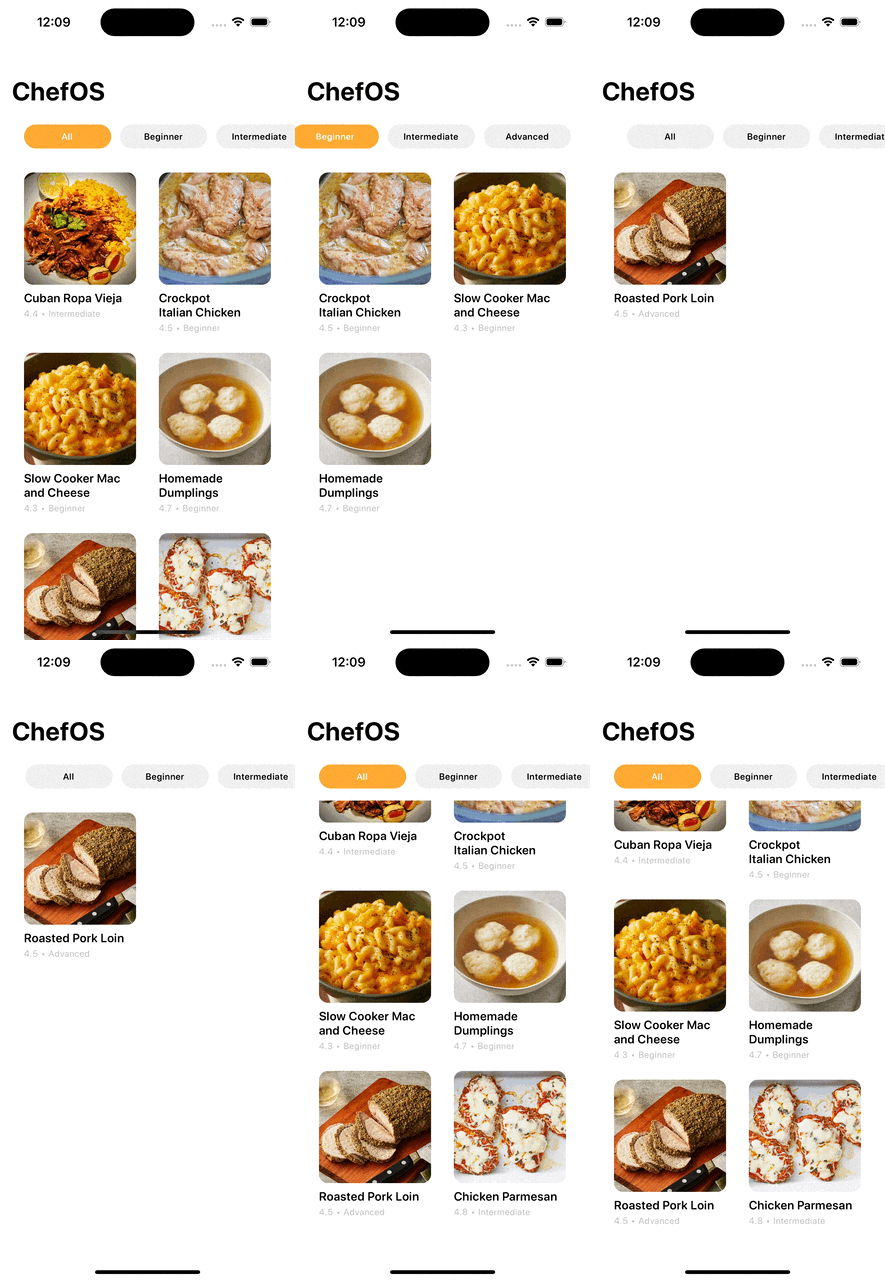
**Your task is to create a horizontally scrolling collection view that represents the filter pills as well as adding filtering functionality.**
Here is a quick demo of what we’re expecting:
### Adding a Filter Collection View
In UIKit, this would be very difficult. Thankfully for you, you're coding in SwiftUI!
1. Make a selectedDifficulty property in ContentView and make a difficulties property in ContentView. Feel free to copy this in, as long as you understand why we will need the @State. Your default selectedDifficulty should be "All"
```swift
@State private var selectedDifficulty = "All"
private let difficulties: [String] = ["All", "Beginner", "Intermediate", "Advanced"]
```
2. Make a ScrollView containing a HStack between the ChefOS title and your recipe cells. The following shows how to allow for horizontal scrolling.
```swift
ScrollView(.horizontal, showsIndicators: false)
```
3. Make a ForEach in this HStack that looks through difficulties. You will need to set it up with the id parameter as well, since difficulties doesn't conform to identifiable.
```swift
ForEach(difficulties, id: \.self) {
...
}
```
4. Make these little capsule filter buttons inside the for each. One way to do this is by making each of them a Button. The code / function that the Button actually calls should be as easy as setting selectedDifficulty = Difficulty. Then, make the label a Text component that uses the .background() modifier with a capsule inside
Text(difficulty)
// fonts and other modifiers
.background(  Capsule()
                // more modifiers here for the Capsule specifically
                )
### Filtering Logic
* You ***do not*** need to handle filter stacking. This is somewhat advanced so we will leave that for extra credit.
* There are many ways to determine if a cell is selected, so I will leave this up to you to decide. Make sure that the currently selected tab is highlighted with a white text color. If you are lost and have no idea where to start, feel free to ask on Ed Discussion or come to office hours.
* To filter the array of recipes, you can use the `filter` higher order function. Feel free to look up documentation for this, or just check out A1.
**Once you are done, stage, commit, and push to GitHub.**
## Part IV: Fetching Recipes
***
**Your task is to create a GET request to fetch all recipes from this API:**
```
https://api.jsonbin.io/v3/b/64d033f18e4aa6225ecbcf9f?meta=false
```
You can use Postman to test the HTTP request. You will need to create a `NetworkManager` class with a `shared` singleton instance. You will be using async/await. See the L9, textbook, or use the internet as a reference.
Error handling is not required but is nice to have. You will know if you integrated it correctly if there are more recipes than the dummy data. As a reminder, the JSON uses snake\_case but Swift uses camelCase.
Networking is one of the most important but difficult concepts to learn and implement. We want you to get as much practice as you can to prepare you for the Hack Challenge. If you are confused, please create a post on Ed Discussion or visit office hours.
**One caveat for SwiftUI is that you will need to call your fetch function (e.g. NetworkManager.fetchRecipes()) inside of a .onAppear modifier instead of viewDidLoad() like in UIKit**
You'll need to update your model for recipe to make ID into a UUID instead of a string, like this:
```swift
var id: UUID?
```
Next, add coding keys into your recipe struct:
```swift
enum CodingKeys: String, CodingKey {
case id, description, difficulty, imageUrl = "image_url", name, rating
}
```
Make two init functions for the recipe struct, one that is a default initializer for your dummy data, and another is a networking initializer for fetching. This is how you should do the networking initializer. I will post an Ed post explaining this so look at it to understand what this does.
```swift
init(from decoder: Decoder) throws {
let container = try decoder.container(keyedBy: CodingKeys.self)
// Convert string ID to UUID
if let idString = try container.decodeIfPresent(String.self, forKey: .id) {
self.id = UUID(uuidString: idString)
} else {
self.id = nil
}
// Decode the rest of the properties normally
self.description = try container.decode(String.self, forKey: .description)
self.difficulty = try container.decode(String.self, forKey: .difficulty)
self.imageUrl = try container.decode(String.self, forKey: .imageUrl)
self.name = try container.decode(String.self, forKey: .name)
self.rating = try container.decode(Float.self, forKey: .rating)
}
```
**Finally, check that your networking is actually working. Make sure you see King Pao Chicken in your recipes in the app - that is a recipe that is in the endpoint but not the dummy data.**
{% hint style="danger" %}
**Make sure that filtering still works properly!**
{% endhint %}
**Once you are done, stage, commit, and push to GitHub.**
## Part V: Bookmark Recipes
***
**Your task is to implement bookmarking functionality for these recipes.** You will need a way to keep track of bookmarked recipes to save them locally via UserDefaults. We will also have an Ed post out for UserDefaults!
* First, figure out what data structure you will use to keep track of bookmarked recipes. Then, think of a key that you will use to access through UserDefaults. My recommendation is that you use a BookmarkManager that is a singleton instance.
* In your BookmarkManager, you'll want to include:
* @Published bookmarkRecipesIds, which is a Set\ (set of UUIDs from your recipe ids).
* saveBookmarks() function that uses UserDefaults.set
* loadBookmarks() function that loads from UserDefaults
* toggleBookmarks() function that adds or removes the ID from bookmarkRecipeIds, and calls saveBookmarks afterwards
* an init function that calls loadBookmarks()
* Then, in ContentView, RecipePage, and RecipeCell, set up an @StateObject called bookmarkManager that is equal to BookmarkManager.shared. If you don't make it a State object and instead use BookmarkManager.shared directly, your bookmark icons will not be updated!
* You'll need to use the `.onAppear{}` modifier on your views to make sure that the view gets the data from BookmarkManager.
* Update the UI so that recipes that are bookmarked should have a bookmark icon in their cell. See the Figma for UI details. See the point below on how to get the bookmark icon.
* You will need to create a `ToolbarItem` to represent the bookmark button in RecipePage. This button will be in the detailed recipe view on the top right corner. If the recipe is already saved, the bookmark button will be filled and tapping on it will remove it from the saved recipes. You can add this to your RecipePage by using the `.toolbar{}`modifier at the end of the RecipePage and putting ToolbarItem wrapping a Button wrapping `Image(systemName: "bookmark")` or `Image(systemName: "bookmark.fill")`
* Adding the bookmark to the RecipeCell should be as easy as just putting the bookmark image in an if statement.
* All saved recipes should be stored locally. You can check by restarting the app. If the saved recipes do not reset, then you are good to go.
Here is a quick demo of what we are looking for:
{% file src="/files/OJ2hEDPeJJYPDanjBwOq" %}
**Once you are done, stage, commit, and push to GitHub.**
{% hint style="success" %}
✋🏻 **If you reach this point, you are done with the assignment. However, feel free to challenge yourself with the extra credit features.**
{% endhint %}
## Extra Credit
***
{% hint style="danger" %}
**Extra credit will only be given if the features are *****fully***** implemented. These are unordered and you can choose as many as you like.**
{% endhint %}
### 1: Custom Back Button (+1 pt)
**Your task is to create a custom back button.** The [Figma](https://www.figma.com/file/rCPlphpMKQZDLFIld6x0Cj/A4%3A-ChefOS?type=design\&node-id=1%3A23\&mode=design\&t=Ms5BRPZtDqKdt41m-1) has a possible design for this, but you are free to use any button you like. This should be a freebie if you finished the task in Part V.
### 2: Stacking Filters (+1)
Right now, you can only select one filter at a time. **Your task is to allow for filter stacking**. All selected filters should be highlighted and the collection view should contain all selected filters.
### 3: Nesting CollectionViews (+1)
Right now, you have two separate collection views: one for the filters and the other for the recipes. Because these collection views have different scrolling directions, if we wanted to make them both scrollable vertically, then we will have to nest collection views. **Your task here is to nest collection views so that the filters scroll with the recipes.** In other words, if I scroll up, the filters should scroll up as well while maintaining its horizontal scrolling attribute.
### 4: Separate Bookmark Page (+2)
**Your task here is to create a page listing out all bookmarked recipes.** The design is up to your creativity, but there needs to be some way to push the detailed recipe view where you can then bookmark/unbookmark. You may also need to use delegation to update this bookmark list, similar to what you did in Part V.
**Once you are done, stage, commit, and push to GitHub.**
## Submission
***
1. Double check that all of your files are properly pushed to GitHub.
2. Clone your repository into a **separate** folder on your local computer drive.
3. Run your project and make sure that your code does not crash and everything works as needed.
4. If you are satisfied, download this TXT file and fill it out. Make sure to use the **Clone SSH path**.
{% file src="/files/ZXdNMAmmGlCLk6zh3jDD" %}
5. Confirm that your `submission.txt` is formatted like the following and submit it on [CMS](https://cmsx.cs.cornell.edu/web/guest/).
```
Name: Vin Bui
NetID: vdb23
GitHub Repository: git@github.coecis.cornell.edu:cs1998-601-SEM/NETID-a4.git
Extra Credit:
+1 : ____
+1 : ____
+1 : ____
+1 : ____
+2 : ____
```
6. Fill out this [feedback survey](https://forms.gle/q5yAHdh5CxNTDuJu7) (worth 1 point).
{% hint style="info" %}
**If you are partnered, make sure to create a group on CMS and put both names in the ****`submission.txt`**** file. Both students must fill out the feedback survey to receive credit.**
{% endhint %}