# A3: ChatDev

{% hint style="danger" %}
**Midpoint Due: Wednesday, November 5, 2025 11:59 pm**\
**Final Due: Monday, November 10, 2025 11:59 pm**
{% endhint %}

{% hint style="info" %}
**If you are not enrolled in the course but would still like to complete the assignments, you can download the ZIP file below (note that you will not be able to enter any Git commands). Otherwise, we will create a repository for you.**
{% endhint %}

{% file src="<https://1509678725-files.gitbook.io/~/files/v0/b/gitbook-x-prod.appspot.com/o/spaces%2F-Lwk7443W4ukbAF9S07e%2Fuploads%2FbXCOBVvsjp8vLszu8Z4P%2Fa3.zip?alt=media&token=bf0bf2ce-153c-45f9-bcf8-3772a2ad18ea>" %}

## Overview

***

In this assignment, you will be creating a “social media” app. You will be using Alamofire to send HTTP requests to a backend endpoint to fetch information.

## Learning Objectives

***

**Developer Skills**

* **How to use Postman to test HTTP requests**
* **How to read code written by other developers**
* **How to read data received from the backend to structure frontend code**
* How to work with Git and GitHub for version control
* How to read documentation from outside resources
* How to format and structure your code to follow MVC design pattern
* How to follow common styling conventions used in industry
* How to implement designs created on Figma

**Course Material**

* How to represent lists of data using a <mark style="color:red;">`UICollectionView`</mark> and a <mark style="color:red;">`UICollectionViewCell`</mark>
* How to send GET requests to a backend API using Alamofire
* How to send POST requests to a backend API using Alamofire
* How to write callbacks (completion handlers) to handle asynchronous calls
* How to create a <mark style="color:red;">`NetworkManager`</mark> singleton class to contain network calls
* How to decode a JSON using a <mark style="color:red;">`JSONDecoder`</mark> in Swift
* How to handle errors with networking calls

## Academic Integrity

***

As with any other course at Cornell, the Code of Academic Integrity will be enforced in this class. All University-standard Academic Integrity guidelines should be followed. This includes proper attribution of any resources found online, including anything that may be open-sourced by AppDev. The University guidelines for Academic Integrity can be found [here](https://theuniversityfaculty.cornell.edu/academic-integrity/).

**This assignment can be done with ONE partner.** You are also free to come to the instructors or any course staff for help. Programming forums like *Stack Overflow* or *Hacking with Swift* are allowed as long as you understand the code and are not copying it exactly. **The majority of code (excluding external libraries) must be written by you or your partner.** Code written through AI means such as ChatGPT is **NOT ALLOWED**. However, you may use these resources for assistance, although we highly encourage consulting Ed Discussion or office hours instead.

## Getting Help

***

If you are stuck or need a bit of guidance, please make a post on Ed Discussion or visit [office hours](https://ios-course.cornellappdev.com/resources/archived-past-semesters/fa25/logistics/office-hours). **Please do not publicly post your code on Ed Discussion.** If you are using an external resource such as Stack Overflow, keep in mind that we are using UIKit with Swift 5. If you see anything with @IBOutlet or any weird syntax, then you are most likely looking at a different version.

## Grading Rubric

***

The feedback form link is located in the [Submission](#submission) section of this handout.

* <mark style="color:red;">`UI`</mark>: implements the user interface
* <mark style="color:red;">`F`</mark>: implements the functionality
* <mark style="color:red;">`EC`</mark>: extra credit

<table data-header-hidden><thead><tr><th width="374"></th><th></th></tr></thead><tbody><tr><td><mark style="color:blue;"><strong>PART I: Creating the UICollectionViewCell</strong></mark></td><td><mark style="color:blue;"><strong>_ / 2</strong></mark></td></tr><tr><td>UI: Header (name, date, image)</td><td>_ / 1</td></tr><tr><td>UI: Post Message, Like Button, # Likes</td><td>_ / 1</td></tr><tr><td><mark style="color:blue;"><strong>PART II: Creating the UICollectionView</strong></mark></td><td><mark style="color:blue;"><strong>_ / 3</strong></mark></td></tr><tr><td>UI: Multiple sections</td><td>_ / 1</td></tr><tr><td>UI: Dynamic number of items/cells (adding a new Post to the array adds a new item/cell)</td><td>_ / 1</td></tr><tr><td>UI: Each cell is unique and represents a different Post</td><td>_ / 1</td></tr><tr><td><mark style="color:blue;"><strong>PART III: Fetching Posts</strong></mark></td><td><mark style="color:blue;"><strong>_ / 3</strong></mark></td></tr><tr><td>F: GET Request to Fetch Posts</td><td>_ / 2</td></tr><tr><td>F: Refresh Control</td><td>_ / 1</td></tr><tr><td><mark style="color:blue;"><strong>PART IV: Creating a Post</strong></mark></td><td><mark style="color:blue;"><strong>_ / 3</strong></mark></td></tr><tr><td>F: POST Request to Create a Post</td><td>_ / 3</td></tr><tr><td><mark style="color:blue;"><strong>PART V: Liking a Post</strong></mark></td><td><mark style="color:blue;"><strong>_ / 2</strong></mark></td></tr><tr><td>F: POST Request to Like a Post</td><td>_ / 1</td></tr><tr><td>F: ❤️ turns red if liked, # likes goes up</td><td>_ / 1</td></tr><tr><td><mark style="color:blue;"><strong>OTHER</strong></mark></td><td><mark style="color:blue;"><strong>_ / 2</strong></mark></td></tr><tr><td>Feedback Survey</td><td>_ / 1</td></tr><tr><td>Styling: <mark style="color:red;"><code>viewDidLoad</code></mark> calls helper functions</td><td>_ / 1</td></tr><tr><td><mark style="color:green;"><strong>SUBTOTAL</strong></mark></td><td><mark style="color:green;"><strong>_ / 15</strong></mark></td></tr><tr><td>EC: POST Request to Unlike a Post</td><td>+ 1</td></tr><tr><td>EC: Sort by Top/New posts</td><td>+ 1</td></tr><tr><td>EC: Animation when liking a Post</td><td>+ 1</td></tr><tr><td>Deduction: Crash Tax</td><td>-1 point</td></tr><tr><td><mark style="color:green;"><strong>GRAND TOTAL</strong></mark></td><td><mark style="color:green;"><strong>_ / 15 (+3)</strong></mark></td></tr></tbody></table>

## Getting Started

***

### Using Postman

You are encouraged to use [Postman](https://www.postman.com/) to test out HTTP requests. Please take a look at the [Postman guide](https://ios-course.cornellappdev.com/resources/tool-guides/postman).

### Using Figma

Similar to A2, we will be using Figma for the design sketches. You can find the link to the Figma [here](https://www.figma.com/file/kzgaF8pBYQLgjyWDyIzKSh/A3%3A-ChatDev?type=design\&node-id=1%3A1199\&mode=design\&t=zCm1ZPIQJyLxedca-1). If you do not have an account, you can create one under your Cornell email. If you need a refresher, check out the [Figma guide](https://ios-course.cornellappdev.com/resources/tool-guides/figma).

### Using Git

If you are having trouble understanding how we will be using Git in this course, please read the A1 handout under [Understanding Git and GitHub](https://ios-course.cornellappdev.com/resources/archived-past-semesters/fa25/assignments/broken-reference) section, or visit office hours so we can assist you. As a reminder:

1. **Stage:** <mark style="color:red;">`git add .`</mark>
2. **Commit:** <mark style="color:red;">`git commit -m "YOUR MESSAGE HERE"`</mark>
3. **Push:** <mark style="color:red;">`git push`</mark>

### Cloning the Repository

Navigate to a folder on your device where you will keep all of your assignments. You can navigate to the folder using <mark style="color:red;">`cd`</mark> in Terminal.

Clone the repository on GitHub:

* Replace **NETID** with your NetID
* Replace **SEM** with the semester (such as <mark style="color:red;">`fa23`</mark> or <mark style="color:red;">`sp24`</mark>)

```powershell
git clone git@github.coecis.cornell.edu:cs1998-601-SEM/NETID-a3.git
# Ex: git clone git@github.coecis.cornell.edu:cs1998-601-fa23/vdb23-a3.git
```

If you have a partner, replace **NETID1** and **NETID2**. Try changing the order if the former does not work.

```powershell
git clone git@github.coecis.cornell.edu:cs1998-601-SEM/NETID1-NETID2-a3.git
```

If you are lost or getting any kind of error, create a post on Ed Discussion or come to office hours.

### Opening the Project

Navigate to the repository located on your local computer drive. Inside of the folder <mark style="color:red;">`NETID-a3`</mark> should contain an Xcode project called <mark style="color:red;">`A3.xcodeproj`</mark>. Open up the project.

### Locating the Source Code

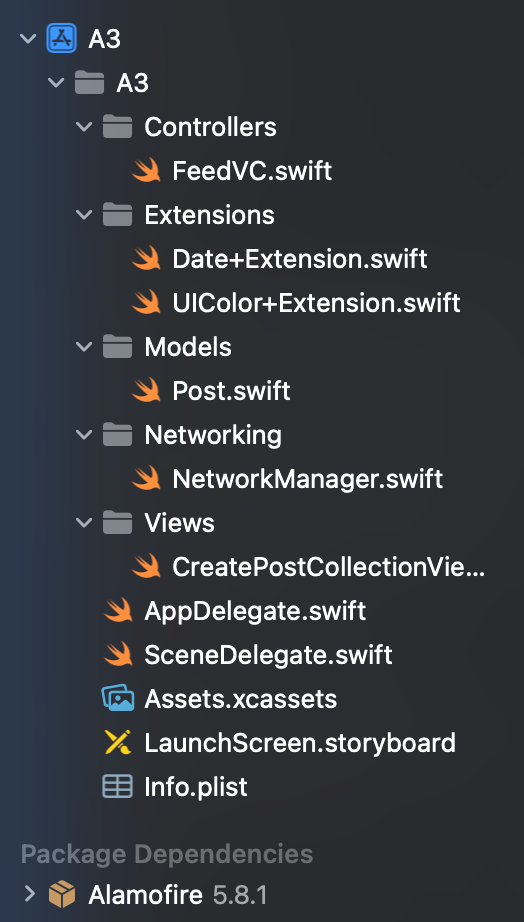
Once you have the project opened, on the left side of the screen you should see the Navigator which contains all of the folders and files in the directory. If not, press <mark style="color:red;">`CMD + 0`</mark> (that’s a zero) on your keyboard. You should see something like this:

<figure><img src="https://1509678725-files.gitbook.io/~/files/v0/b/gitbook-x-prod.appspot.com/o/spaces%2F-Lwk7443W4ukbAF9S07e%2Fuploads%2Fu2a0T7G9eF0zkAKBpLZp%2FScreenshot%202023-10-31%20at%206.53.19%E2%80%AFPM.png?alt=media&#x26;token=57ef94be-459f-45b3-8a6c-5bc18febf589" alt="" width="262"><figcaption></figcaption></figure>

## Assignment Files

***

There is already code written in this file. As developers, we often build on top of what others have written which is why it is important that you practice this skill. You will often see code that you have never seen before, and it is your job to understand it.

### `FeedVC.swift`

This file contains the main view controller that you will be working with throughout the entire assignment. The “Create Post” cell has already been implemented but you will notice that you cannot see it. You will need to finish setting up the collection view. The lecture does not go over how to create different sections; however, the process is very similar to what we went over in lecture and we will guide you in this handout. There are <mark style="color:red;">`TODO`</mark> comments to help guide you.

### `CreatePostCollectionViewCell.swift`

This file represents the cell to create a post. You are free and encouraged to look over this file to help you implement your own custom collection view cell. You can also reference the lecture or textbook chapter [here](https://ios-course.cornellappdev.com/resources/archived-past-semesters/fa25/assignments/broken-reference). In addition, you will be asked to write code to send a network request to create a post. There is a <mark style="color:red;">`TODO`</mark> comment indicating where you should implement this logic.

### `NetworkManager.swift`

This file will contain the Alamofire code to send HTTP requests to the backend. Refer to the lectures or textbook chapters [here](https://ios-course.cornellappdev.com/resources/archived-past-semesters/fa25/assignments/broken-reference).

### `Date+Extension.swift`

**DO NOT EDIT THIS FILE!** This file contains a function <mark style="color:red;">`convertToAgo`</mark> that returns a string representation of the <mark style="color:red;">`Date`</mark> object indicating how long ago this post was created. You will call this function on the property holding the post’s date when you create your custom collection view cell.

### `UIColor+Extension.swift`

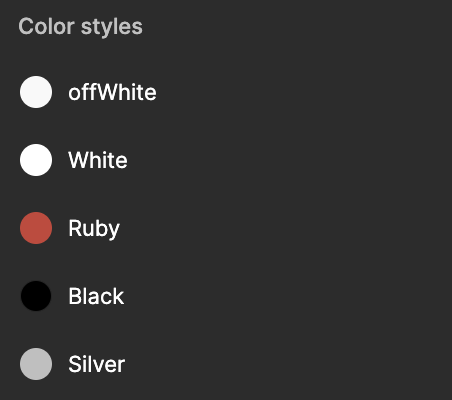
**DO NOT EDIT THIS FILE!** Similar to A2, this file contains colors that are featured in the [Figma](https://www.figma.com/file/kzgaF8pBYQLgjyWDyIzKSh/A3%3A-ChatDev?type=design\&node-id=1%3A1199\&mode=design\&t=zCm1ZPIQJyLxedca-1) design. To use the colors, simply type <mark style="color:red;">`UIColor.a3.<color_name>`</mark>. It is good practice to implement the design system before starting any project, making it very easy to use throughout the entire project. **Look over this file to understand how it works and keep note of the colors available for you to use.**

<figure><img src="https://1509678725-files.gitbook.io/~/files/v0/b/gitbook-x-prod.appspot.com/o/spaces%2F-Lwk7443W4ukbAF9S07e%2Fuploads%2Fq5I0dUR2sGvei9vwAJJl%2FUntitled.png?alt=media&#x26;token=0d1e2ed0-6665-44de-8807-4e4392a9cb82" alt="" width="226"><figcaption><p>From the Figma Design</p></figcaption></figure>

## Styling

***

Throughout the provided files, you may have noticed the <mark style="color:red;">`// MARK`</mark> comments. These are used to keep the code organized.

* <mark style="color:red;">`Properties (View)`</mark> are used for <mark style="color:red;">`UIView`</mark> objects such as <mark style="color:red;">`UILabel`</mark>, <mark style="color:red;">`UIImageView`</mark>, etc. **You should mark these properties as** <mark style="color:red;">`private`</mark> **and make them&#x20;*****constants*****&#x20;(use** <mark style="color:red;">`let`</mark>**).**
* <mark style="color:red;">`Properties (Data)`</mark> are used for data types such as <mark style="color:red;">`String`</mark>, <mark style="color:red;">`Int`</mark>, delegates, etc. **Again, mark these properties as** <mark style="color:red;">`private`</mark> **but it is up to you to decide if they are constants or variables.**
* The <mark style="color:red;">`Set Up Views`</mark> section should be used for initializing your view properties.

You are not limited to these sections and are free to add more (and you should). Because many of your data properties are marked as <mark style="color:red;">`private`</mark>, you ***may*** need to create an <mark style="color:red;">`init`</mark> function.

Follow these steps when implementing the UI:

1. Create the view
2. Initialize the view
3. Constrain the view
4. Run, confirm, and repeat

{% hint style="danger" %}
**Your&#x20;**<mark style="color:red;">**`viewDidLoad`**</mark>**&#x20;method should contain&#x20;*****mostly*****&#x20;function calls to helper functions. We will be grading you on this.**
{% endhint %}

## Endpoints

***

* **Endpoint:** [**https://ios-course-backend.cornellappdev.com/api/posts**](https://ios-course-backend.cornellappdev.com/api/posts)

<mark style="color:red;">(EDIT 4/14 23:23: For liking and unliking a post, you'll have to pass in the post ID as a parameter of the URL)</mark>

|                 | Type | Route                       | Request Body                                       |
| --------------- | ---- | --------------------------- | -------------------------------------------------- |
| Fetch all posts | GET  | /api/posts/                 | None                                               |
| Create a post   | POST | /api/posts/create/          | <mark style="color:red;">`message`</mark> (String) |
| Like a post     | POST | /api/posts/{postId}/like/   | <mark style="color:red;">`netId`</mark> (String)   |
| Unlike a post   | POST | /api/posts/{postId}/unlike/ | <mark style="color:red;">`netId`</mark> (String)   |

## Part I: Creating the <mark style="color:red;">`UICollectionViewCell`</mark>

***

**Your task is to create a custom&#x20;**<mark style="color:red;">**`UICollectionViewCell`**</mark> **for the post**. **Create this file inside of the&#x20;**<mark style="color:red;">**`Views`**</mark>**&#x20;folder.** You will need to create a struct or class (struct recommended) to represent a post. **Create this file inside of the&#x20;**<mark style="color:red;">**`Models`**</mark>**&#x20;folder**. As a reference, this is an example post object in JSON fetched from the backend.

```json
{
    "id": "7m03J198pyXFBvCOLNbw",
    "likes": ["vdb23", "rs929"],
    "messsage": "Howdy!",
    "time": "2023-06-12T22:03:23Z"
}
```

You will need to figure out the name and type of your properties for this object. **However, the&#x20;**<mark style="color:red;">**`time`**</mark>**&#x20;property will be a&#x20;**<mark style="color:red;">**`Date`**</mark>**&#x20;object (even though it’s a string in the JSON).** I will show you how to decode this in Part III.

Because you have not implemented networking yet, you will need to create dummy data to test the UI. When creating these dummy data, you can use the code <mark style="color:red;">`Date()`</mark> for the <mark style="color:red;">`time`</mark> property. For the other fields, you can customize it however you like.

Your custom cell class will have the following:

* Name (”Anonymous”)
* Date
* Image (AppDev Logo)
* Post message body
* Like button (use non-filled heart for now)
* Number of likes

Keep in mind the background color, text color, font style, corner radius, etc. You should already have practice in A2 implementing views so I will not guide you as much as A2. Feel free to Google or look at the <mark style="color:red;">`CreatePostCollectionViewCell`</mark> class as a reference. However, your custom cell class differs in that it will need a <mark style="color:red;">`configure`</mark> method. **You can use the&#x20;**<mark style="color:red;">**`convertToAgo`**</mark>**&#x20;function for the date object and assign it to the label’s text to format the “time ago” string.**

**Once you are done, stage, commit, and push to GitHub.**

## Part II: Creating the <mark style="color:red;">`UICollectionView`</mark>

***

**Your task is to create a&#x20;**<mark style="color:red;">**`UICollectionView`**</mark>**&#x20;representing the feed.** There is already some code written that you will need to look over. There is also a custom cell class called <mark style="color:red;">`CreatePostCollectionViewCell`</mark> that represents the “Create Post” cell already implemented for you. You will need to register and use this cell along with the other custom cell you created in Part I.

**This collection view contains 2 sections, each section containing different cell classes.**

* Similar to items, sections are zero-indexed meaning that the first section has index 0. Use this information to implement the functions required to conform to <mark style="color:red;">`UICollectionViewDataSource`</mark>, <mark style="color:red;">`UICollectionViewDelegate`</mark>, and <mark style="color:red;">`UICollectionViewFlowLayoutDelegate`</mark>.
* When creating your FlowLayout, keep in mind the spacing between each item is 16px and between each section is 24px. To add the spacing between sections, implement the <mark style="color:red;">`insetForSectionAt`</mark> function in the <mark style="color:red;">`UICollectionViewDataSource`</mark> extension.

The first section contains only 1 cell and there is no data model associated with it. Again, the custom cell class for this section is <mark style="color:red;">`CreatePostCollectionViewCell`</mark>. I highly recommend that you read and understand the code written in this class. Once you are able to see this cell in your collection view, begin implementing the second section.

The second section contains a variable number of cells indicating that you will need a data model representing the posts. Because you have not implemented networking yet, you will need to create dummy data to test this. If you can see both sections and their cells, you should be good to go.

{% hint style="danger" %}
**Note: For the scope of this course, we will not be handling self-sizing cells. The height for each cell is fixed and there are a maximum of three lines for the post message.**
{% endhint %}

**Once you are done, stage, commit, and push to GitHub.**

{% hint style="success" %}
✋🏻 **This is the stopping point for the midpoint submission. We will grade you for completion based on your GitHub commit history.**

**Please submit a `submission.txt` file on CMSX similar to how you did it for your A2 submission. You can download the outline below and see an example submission right under it.**
{% endhint %}

{% file src="<https://1509678725-files.gitbook.io/~/files/v0/b/gitbook-x-prod.appspot.com/o/spaces%2F-Lwk7443W4ukbAF9S07e%2Fuploads%2FGs9qTTdOr0Ox1tD9rYrc%2Fsubmission.txt?alt=media&token=0d4f00de-9087-4689-ab4e-7ea21f180c58>" %}

```
Name: Richie Sun
NetID: rs929
GitHub Repository: git@github.coecis.cornell.edu:cs1998-601-SEM/NETID-a3.git
Notes: I was having trouble with setting up the UICollectionViewDelegateFlowLayout...
```

## Part III: Fetching Posts

***

**Your task is to send a GET request using Alamofire to fetch all posts from the backend.** Currently, your posts are all hard-coded dummy data. Of course, we want to be able to receive posts created by other people, so we must integrate networking. In Part I, you were given an example JSON representing a post, and you created your model object based on this JSON. The reason for this is that it makes decoding the JSON received from the backend to your model very simple.

If you have not installed Postman yet, you can install it [here](https://www.postman.com/). Read [this short chapter](https://ios-course.cornellappdev.com/guides/postman) on how to use Postman for this assignment. Then, add a new GET request with the URL: <mark style="color:red;">`https://ios-course-backend.cornellappdev.com/api/posts/`</mark> . This should return a list of all posts from the backend with a 200 status code.

Your job is to integrate these posts into the frontend. You can decode the <mark style="color:red;">`time`</mark> field to a <mark style="color:red;">`Date`</mark> object if you set the decoder’s <mark style="color:red;">`dateDecodingStrategy`</mark> to <mark style="color:red;">`.iso8601`</mark>. For example:

```swift
let decoder = JSONDecoder()
decoder.dateDecodingStrategy = .iso8601
```

Your callback (completion handler) will take in an array of <mark style="color:red;">`Post`</mark> objects (<mark style="color:red;">`[Post]`</mark>). It will also be very helpful to have proper error handling in your code. Refer to the lecture or textbook chapter [here](https://ios-course.cornellappdev.com/resources/archived-past-semesters/fa25/assignments/broken-reference).

**Once you are able to fetch all posts from the backend, your next task is to add pull to refresh to your collection view.** Follow these steps:

```swift
// 1. Create a UIRefreshControl view property
private let refreshControl = UIRefreshControl()

// 2. Add a function to be called as a target
refreshControl.addTarget(self, action: #selector(fetchAllPosts), for: .valueChanged)

// 3. Assign the collection view’s refresh control
collectionView.refreshControl = refreshControl

// 4. Stop refreshing after the network call is complete
refreshControl.endRefreshing()
```

**Once you are done, stage, commit, and push to GitHub.**

## Part IV: Creating a Post

***

**Your task is to send a POST request using Alamofire to add a post to the backend.**

A good rule of thumb is to always use Postman before writing the code.

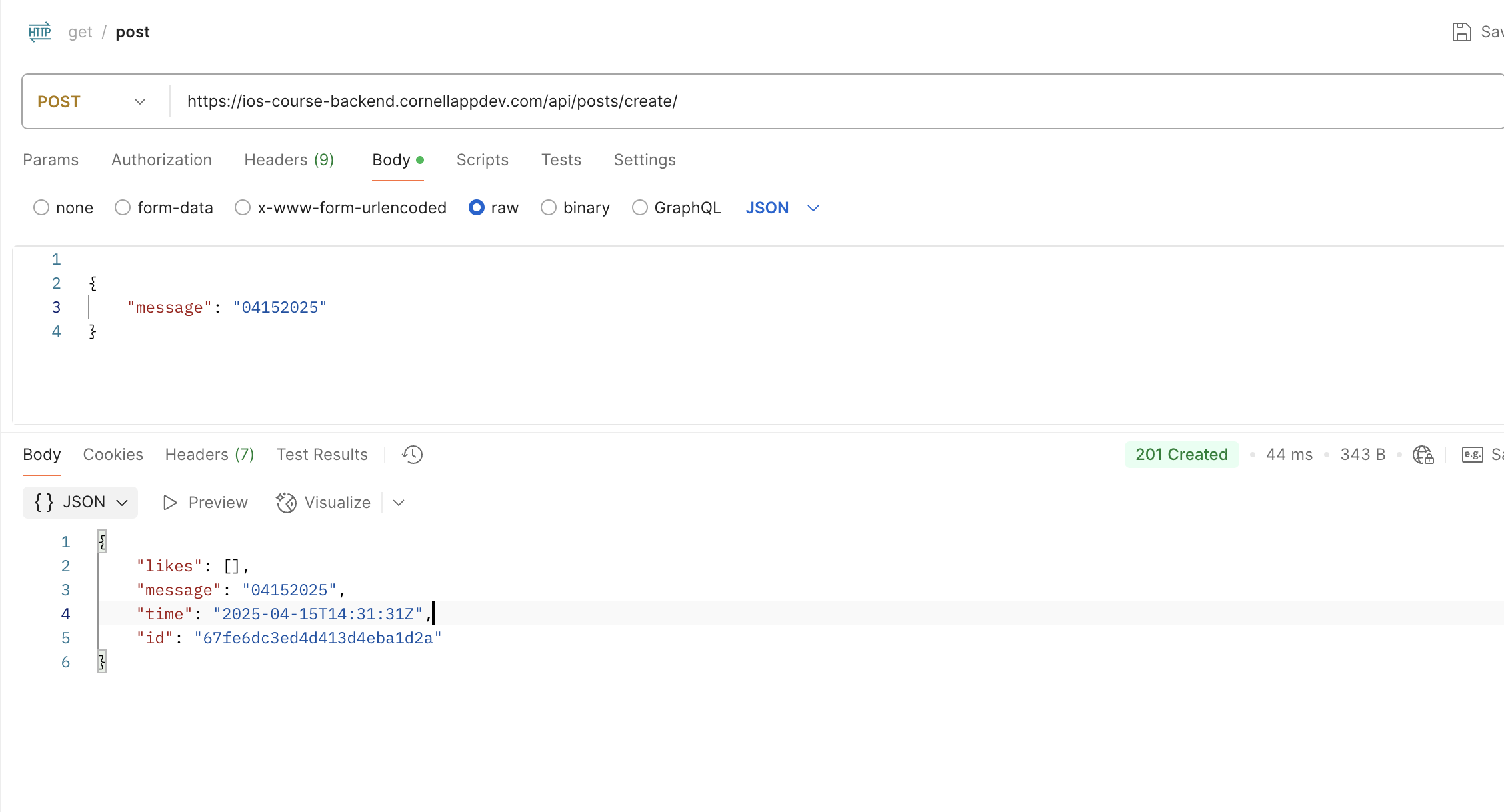
1. Add a new request to your collection with a POST method
2. Enter the URL <mark style="color:red;">`https://ios-course-backend.cornellappdev.com/api/posts/create/`</mark>.
3. Click on the <mark style="color:red;">`Body`</mark> tab, select <mark style="color:red;">`raw`</mark>, and change the blue dropdown from “Text” to <mark style="color:red;">`JSON`</mark>
4. This request expects the following body:

```swift
{
    "message": "<Enter some message here>"
}
```

<figure><img src="https://1509678725-files.gitbook.io/~/files/v0/b/gitbook-x-prod.appspot.com/o/spaces%2F-Lwk7443W4ukbAF9S07e%2Fuploads%2FYndwBChiShY3xHARA3d0%2FScreenshot%202025-04-15%20at%2010.32.00%E2%80%AFAM.png?alt=media&#x26;token=99dc5755-3eda-499c-a607-84c96fdad218" alt=""><figcaption></figcaption></figure>

If successful, the server returns a 201 status code with the above JSON data representing the post that was just created. **You do not need to do anything with this information for this assignment, but it is a common practice for the backend to return this data.** If you fetch all posts again, either through Postman or your app, you should see the new post that you created.

Similar to Part III, you will integrate this network call within your app. Follow these steps:

1. Create a function in <mark style="color:red;">`NetworkManager`</mark> that uses Alamofire to make the call. Remember that this is a POST request with a request body parameter called <mark style="color:red;">`message`</mark>. Proper error handling is highly recommended!
2. Call this function inside of <mark style="color:red;">`CreatePostCollectionViewCell.createPost`</mark>. There should be a <mark style="color:red;">`TODO`</mark> comment. As a hint, there is a text field in this class that you will need to use.
3. (Optional) If the call is successful, clear the the textfield. You can pass <mark style="color:red;">`true`</mark> to the callback if successful or <mark style="color:red;">`false`</mark> otherwise.
4. Run the app and try to create a post. For the scope of this assignment, you do not need to have the collection view updated as soon as you create the post. However, refreshing the collection view should contain the new post.

**Once you are done, stage, commit, and push to GitHub.**

## Part V: Liking a Post

***

**Your task is to send a POST request using Alamofire to&#x20;*****like*****&#x20;a post.**

Before you integrate networking, configure the like button to be filled with the color ruby if the post’s liked users contains your NetID.

Just like before, use Postman to test the backend call.

1. Add a new request to your collection with a POST method
2. Enter the URL: <mark style="color:red;">`https://ios-course-backend.cornellappdev.com/api/posts/{postId}/like/`</mark> <mark style="color:red;"></mark><mark style="color:red;">(EDIT 4/14 23:23: You'll have to pass in the post ID as a parameter of the URL)</mark>
3. Click on the <mark style="color:red;">`Body`</mark> tab, select <mark style="color:red;">`raw`</mark>, and change the blue dropdown from “Text” to <mark style="color:red;">`JSON`</mark>
4. This request expects the following body:

```swift
{
    "netId": "<Enter your NetID>"
}
```

**You will use your NetID (all lowercase).** If the call is successful, you should receive the updated post.

There are many ways you can go about this. My recommendation for you is to pass a boolean to the callback to indicate whether or not the call was successful, similar to Part IV. If the call is successful, make the like button filled and increment the count by 1. Additionally, you should only be able to tap on the button if the button is not already filled red, so you will need to wrap your network request in an if statement.

You may notice that there is a delay before the button turns red when tapping on it. In apps like Instagram, usually the UI changes even if the API call fails. However, for the sake of simplicity and grading, we want the button to only turn red if the network call succeeds.

**Once you are done, stage, commit, and push to GitHub.**

{% hint style="success" %}
✋🏻 **If you reach this point, you are done with the assignment. However, feel free to challenge yourself with the extra credit features.**
{% endhint %}

## Extra Credit

***

{% hint style="danger" %}
**Extra credit will only be given if the features are&#x20;*****fully*****&#x20;implemented. These are unordered and you can choose as many as you like.**
{% endhint %}

### 1: Unlike a Post (+1 pt)

**Your task is to send a POST request using Alamofire to&#x20;*****unlike*****&#x20;a post.** This may seem similar to Part V, but it requires some additional frontend logic. When grading for this, we will unlike a post and refresh to make sure the backend is actually updated. If you try to unlike a post in which the given NetID does not already like it, you will get an error. You can test this out on Postman. The URL is <mark style="color:red;">`https://ios-course-backend.cornellappdev.com/api/posts/{postId}/unlike/`</mark>. <mark style="color:red;">(EDIT 4/14 23:23: You'll have to pass in the post ID as a parameter of the URL)</mark>

### 2: Sort by Top/New Posts (+1)

If you take a look at the [Figma](https://www.figma.com/file/kzgaF8pBYQLgjyWDyIzKSh/A3%3A-ChatDev?type=design\&node-id=1%3A1199\&mode=design\&t=zCm1ZPIQJyLxedca-1) file, you should see a design containing the text “Top” and “New”. **Your task here is to sort the posts by the # of likes (top) and the most recent (new)**. For example, if the selected tab is “Top”, the post with the most likes will be at the top. If the selected tab is “New”, the most recent post will be at the top. Make sure that the color of the tab changes depending on what is selected.

### 3: Like Animation (+1)

**Your task here is to add some animation when liking a post**. You could add a scaling animation similar to most social media apps or do some other cool animation. As long as there is some animation when liking a post, you will get full credit.

**Once you are done, stage, commit, and push to GitHub.**

## Submission

***

1. Double check that all of your files are properly pushed to GitHub.
2. Clone your repository into a **separate** folder on your local computer drive.
3. Run your project and make sure that your code does not crash and everything works as needed.
4. If you are satisfied, download this TXT file and fill it out. Make sure to use the **Clone SSH path**.

{% file src="<https://1509678725-files.gitbook.io/~/files/v0/b/gitbook-x-prod.appspot.com/o/spaces%2F-Lwk7443W4ukbAF9S07e%2Fuploads%2FSmSuQsq97Yp51Vwk2QOD%2Fsubmission.txt?alt=media&token=a08d3c7d-3bb2-401b-bb94-be7481c896f2>" %}

5. Confirm that your <mark style="color:red;">`submission.txt`</mark> is formatted like the following and submit it on [CMS](https://cmsx.cs.cornell.edu/web/guest/).

```
Name: Vin Bui
NetID: vdb23
GitHub Repository: git@github.coecis.cornell.edu:cs1998-601-fa23/vdb23-a3.git
Extra Credit:
+1 : ____
+1 : ____
+1 : ____
```

6. Fill out this [feedback survey](https://forms.gle/3vZUFcVXcDfZFXVS7) (worth 1 point).

{% hint style="info" %}
**If you are partnered, make sure to create a group on CMS and put both names in the&#x20;**<mark style="color:red;">**`submission.txt`**</mark>**&#x20;file. Both students must fill out the feedback survey to receive credit.**
{% endhint %}