💬A3: ChatDev
Original Author: Vin Bui | New Changes: Zain Bilal
Due: Monday, April 13, 2026 11:59 pm
Setup
If you prefer to use your personal GitHub account instead (not recommended), please make a private Ed post and we’ll provide instructions.
Note: After your assignment has been graded, you’re welcome to copy or upload your repo to your personal GitHub for portfolio purposes.
Read these steps carefully, and reach out on ed if you encounter any problems:
1. Go to the course organization
Navigate to: 👉 https://github.coecis.cornell.edu/cs1998-601-sp26
2. Open the template repo
Click on:
a3-template3. Create your own repo
Click the green “Use this template” button
Select:
Owner:
cs1998-601-sp26Repository name:
NETID-a3(replace NETID with your NetID)
Click “Create repository”
Choose "private"
4. Clone your repo
On your newly created repo page:
Click the green “Code” button
Copy the SSH URL
Then run in your terminal (from the directory you want your files to end up in):
5. Start working
Open the project and begin coding.
6. Save your work (commit + push)
Whenever you make changes:
you can also use github desktop, but we encourage you to play with the command line interface.
Overview
In this assignment, you will be creating a “social media” app. You only have to worry about the UI for now!
Academic Integrity
As with any other course at Cornell, the Code of Academic Integrity will be enforced in this class. All University-standard Academic Integrity guidelines should be followed. This includes proper attribution of any resources found online, including anything that may be open-sourced by AppDev. The University guidelines for Academic Integrity can be found here.
This assignment can be done with ONE partner. You are also free to come to the instructors or any course staff for help. Programming forums like Stack Overflow or Hacking with Swift are allowed as long as you understand the code and are not copying it exactly. The majority of code (excluding external libraries) must be written by you or your partner. Code written through AI means such as ChatGPT is NOT ALLOWED. However, you may use these resources for assistance, although we highly encourage consulting Ed Discussion or office hours instead.
Getting Help
If you are stuck or need a bit of guidance, please make a post on Ed Discussion or visit office hours. Please do not publicly post your code on Ed Discussion.
Grading Rubric
The feedback form link is located in the Submission section of this handout.
UI: implements the user interfaceF: implements the functionalityEC: extra credit
PART I: Creating the Post model
_ / 2
F: Post has all required properties (name, text, likes, timestamp)
_ / 1
F: Mock data created (at least 4 posts in posts array)
_ / 1
PART II: Building PostView
_ / 3
UI: Header (name, date, image)
_ / 1
UI: Post Message
_ / 1
UI: Like Button + Number of Likes
_ / 1
PART III: Wiring up the feed
_ / 2
F: ForEach renders posts dynamically
_ / 1
UI: Each cell is unique and represents a different Post
_ / 1
PART IV: Creating a New Post
_ / 2
F: post button adds a new post and adds it to the feed
_ / 1
F: NewPostView can modify the posts array in ContentView
_ / 1
OTHER
_ / 1
Feedback Survey
_ / 1
SUBTOTAL
_ / 10
Deduction: Crash Tax
-1 point
Deduction: Submitting Empty Posts
-1 point
GRAND TOTAL
_ / 10
Getting Started
Using Figma
Similar to A2, we will be using Figma for the design sketches. You can find the link to the Figma here. If you do not have an account, you can create one under your Cornell email. If you need a refresher, check out the Figma guide.
You shouldn't worry about the extra credit frames!
Using Git
If you are having trouble understanding how we will be using Git in this course, please read the A1 handout under Understanding Git and GitHub section, or visit office hours so we can assist you. As a reminder:
Stage:
git add .Commit:
git commit -m "YOUR MESSAGE HERE"Push:
git push
Opening the Project
Navigate to the repository located on your local computer drive. Inside of the folder NETID-a3 should contain an Xcode project called A3.xcodeproj. Open up the project.
Locating the Source Code
Once you have the project opened, on the left side of the screen you should see the Navigator which contains all of the folders and files in the directory. If not, press CMD + 0 (that’s a zero) on your keyboard.
Extension Files
Date+Extension.swift
DO NOT EDIT THIS FILE! This file contains a function convertToAgo that returns a string representation of the Date object indicating how long ago this post was created. You will call this function on the property holding the post’s date when you create your custom collection view cell.
UIColor+Extension.swift
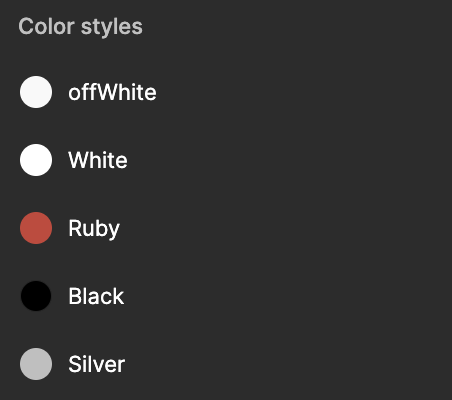
DO NOT EDIT THIS FILE! Similar to A2, this file contains colors that are featured in the Figma design. To use the colors, simply type UIColor.a3.<color_name>. It is good practice to implement the design system before starting any project, making it very easy to use throughout the entire project. Look over this file to understand how it works and keep note of the colors available for you to use.

Part I: Creating Post Model
Your first task is to define the Post model in Post.swift.
You'll notice the struct already has let id = UUID() and conforms to Identifiable. This is required so that SwiftUI can uniquely identify each Post when rendering a list, each post automatically gets its own unique ID.
You will need to add properties for the post's name, body, likes, and timestamp. You must figure out the appropriate type for each property. However, the timestamp property should use the Date type. Calling Date() returns the current date and time at the moment it's created. For example:
To display a Date as a human-readable relative string (e.g. "10 min. ago"), use the provided convertToAgo() extension:
Because you have not implemented networking yet, you will need to create dummy data to test the UI. When creating your mock posts, use Date() for the timestamp. For the other fields, you can customize however you like. Create at least 4 mock posts and store them in the posts array in ContentView.
Once you are done, stage, commit, and push to GitHub.
Part II: Building PostView
Your task is to build PostView in PostView.swift. This view represents a single post in the feed.
PostView should accept a Post as a property (input) and display the following:
Name (e.g. "Anonymous")
Profile Picture (you can use any image you like! Either import it through the asset library, or use a system image)
Look at SF Symbols where you can find system images (or ask AI)
This image will be identical for all posts (that's why our post model doesn't include it)
Timestamp: use the provided
convertToAgo()function on yourDateproperty to format it as a relative time string (e.g. "10 min. ago")Post message body: limit to 3 lines of text
Like button: use a non-filled heart icon (
Image(systemName: "heart")) for nowNumber of likes
Use the provided color extensions for styling. Colors are accessed via Color(UIColor.a3.ruby), Color(UIColor.a3.white), Color(UIColor.a3.silver), etc. Keep in mind the background color, text color, font weight, corner radius, and padding. Look at NewPostView as a reference for styling conventions.
Once you are done, stage, commit, and push to GitHub.
Part III: Wiring Up the Feed
Your task is to connect everything together in ContentView.
There is already some code written that you will need to look over. NewPostView represents the "Create Post" card and is already implemented for you. Read and understand the code written in this view.
Consider making posts something that SwiftUI can observe so updates propagate automatically.
Pass the corresponding
Postto eachPostView.Hint: go through wednesday's demo if you get stuck
Make sure posts are showing up correctly
add/delete posts from the array, does it behave as expected?
If you can see the NewPostView at the top followed by your list of mock posts, you should be good to go.
Once you are done, stage, commit, and push to GitHub.
Part IV: Creating a Post
Your task is to hook up the "Post" button in NewPostView so that it creates a new post and adds it to the feed. We need this post to NOT be empty. You will lose 1 point if you can submit empty posts.
Think about the following as you work on this:
How can
NewPostViewlet the parent view know when a new post is added? (think about property wrappers)When creating
NewPostViewin the parent, how can it stay in sync with the parent’s list of posts?What should happen when the user taps “Post” so the feed updates correctly and the input is ready for a new post? (how do we add an element to an array?)
How can the button know when it should be active or disabled? (should I be able to submit empty posts?)
Use this modifier
.disabled(Boolean_Value)on the button (disables the button ifBoolean_Value == true)
Once you are done, stage, commit, and push to GitHub.
Submission
Double check that all of your files are properly pushed to GitHub.
Clone your repository into a separate folder on your local computer drive.
Run your project and make sure that your code does not crash and everything works as needed.
If you are satisfied, download this TXT file and fill it out. Make sure to use the Clone SSH path.
Confirm that your
submission.txtis formatted like the following and submit it on CMS.
Fill out this feedback survey (worth 1 point).
Last updated
Was this helpful?