> For the complete documentation index, see [llms.txt](https://ios-course.cornellappdev.com/llms.txt). Markdown versions of documentation pages are available by appending `.md` to page URLs; this page is available as [Markdown](https://ios-course.cornellappdev.com/course-content/week-3-or-collectionviews-and-more-uikit/a2.5-profile-addon.md).
# A2.5: Profile Addon
Original Author: Zain Bilal
{% hint style="danger" %}
**Assignment Due: Tue, April 7th 2026 11:59pm**
{% endhint %}
{% hint style="info" %}
Note that there is no starter code for this assignment. You will build on the code you developed for A2. When grading this assignment, we will not penalize issues that originate from mistakes in the A2 tasks.
{% endhint %}
{% hint style="info" %}
This assignment does not require specific spacing or assets. You should experiment with spacing and layout so that the result is scrollable and easy to read.
{% endhint %}
## Setup
***
Continue working in the repository you created for **A2**. All new changes should be committed and pushed to that same repository.
## Overview
***
In this assignment, you will extend the profile application you built in **A2** by adding a **UICollectionView** to your profile page. This collection view will display a grid of hobbies associated with the user’s profile.
{% hint style="info" %}
If you get stuck, use lecture 4 demo as guiding code.
{% endhint %}
## Learning Objectives
***
**Course Material**
* How to create and configure a **UICollectionView**
* How to create a **custom UICollectionViewCell**
* How to implement **UICollectionViewDataSource**
* How to use **UICollectionViewDelegateFlowLayout** to control layout
* How to display properties inside reusable cells
## Academic Integrity
***
As with any other course at Cornell, the Code of Academic Integrity will be enforced in this class. All University-standard Academic Integrity guidelines should be followed. This includes proper attribution of any resources found online, including anything that may be open-sourced by AppDev. The University guidelines for Academic Integrity can be found [here](https://theuniversityfaculty.cornell.edu/academic-integrity/).
**This assignment can be done with ONE partner.** You are also free to come to the instructors or any course staff for help. Programming forums like *Stack Overflow* or *Hacking with Swift* are allowed as long as you understand the code and are not copying it exactly. **The majority of code (excluding external libraries) must be written by you or your partner.** Code written through AI means such as ChatGPT is **NOT ALLOWED**. However, you may use these resources for assistance, although we highly encourage consulting Ed Discussion or office hours instead.
## Getting Help
***
If you are stuck or need a bit of guidance, please make a post on Ed Discussion or visit [office hours](/course-content/office-hours.md). **Please do not publicly post your code on Ed Discussion.** If you are using an external resource such as Stack Overflow, keep in mind that we are using UIKit with Swift 5. If you see anything with @IBOutlet or any weird syntax, then you are most likely looking at a different version.
## Grading Rubric
***
* `UI`: implements the user interface
* `F`: implements the functionality
| UI: Collection View UI | \_/ 3 |
| ------------------------------------------------- | -------------------------------------------- |
| F: Collection View Functionality | \_ / 2 |
| **SUBTOTAL** | **\_ / 5** |
| Deduction: Crash Tax | -1 point |
| **GRAND TOTAL** | **\_ / 5** |
## Getting Started
***
### Using Git
If you are having trouble understanding how we will be using Git in this course, please read the [`Git Installation Section`](https://ios-course.cornellappdev.com/~/revisions/wrtYMFJVea8chxL2Ntds/resources/textbook/git-+-github/git-installation), or visit office hours so we can assist you. As a reminder:
1. **Stage:** `git add .`
2. **Commit:** `git commit -m "YOUR MESSAGE HERE"`
3. **Push:** `git push`
If you are lost or getting any kind of error, create a post on Ed Discussion or come to office hours.
### Opening the Project
Navigate to the repository located on your local computer drive. Inside of the folder `NETID-a2` should contain an Xcode project called `A2.xcodeproj`. Open up the project.
### Locating the Source Code
Once you have the project opened, on the left side of the screen you should see the Navigator which contains all of the folders and files in the directory. If not, press `CMD + 0` (that’s a zero) on your keyboard.
If you expand everything underneath `A2` you should see the following:
You will primarily work in: `ProfileVC.swift`
You will also create: `HobbyCell.swift`
## Assignment Files
***
### `ProfileVC.swift`
This file contains the main **profile page**.
You will modify this file to:
* Create the **UICollectionView**
* Implement **UICollectionViewDataSource**
* Implement **UICollectionViewDelegateFlowLayout**
### `HobbyCell.swift`
You will create a **custom UICollectionViewCell** that displays a label.
This cell will be reused by the collection view to display multiple hobbies.
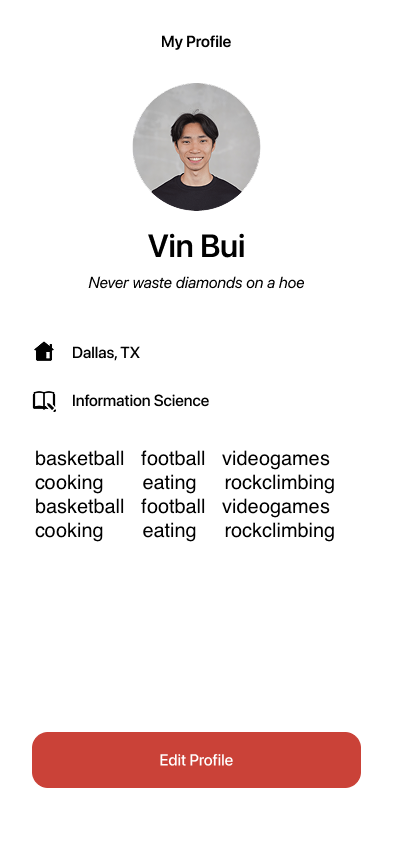
### Example of what this could look like:
{% hint style="info" %}
**Note:** This assignment allows for creative freedom. You will not be graded on the visual design itself, as long as the hobbies are clearly distinguishable.
{% endhint %}
## Part I: Create the Custom Cell (UI)
***
Your first task is to create a custom cell that will display a label.
Create a new Swift file called:
```ssh-config
HobbyCell.swift
```
This class should inherit from:
```swift
UICollectionViewCell
```
Your cell should contain:
#### Text View
```
UILabel
```
This will display the text.
#### Implementation Hints
Create a property for the label.
Example:
```swift
private let hobbyText = UILabel()
```
Inside your setup functions:
1. Initialize the view
2. Add it to the cell’s `contentView`
3. Constrain it to fill the entire cell
Constraints typically include:
* top
* bottom
* (and anything else you see fit)
Create a function that allows the label’s text to be updated (similar to the `configure` function from the Lecture 4 demo).
## Part II: Create the UICollectionView (UI)
***
Next, you will create the **collection view** in `ProfileVC`. This will live **under** the "major" property in the main view. You will NOT be adding functionality to edit these hobbies. The hobbies will be hardcoded under the major information in the profile.
#### Step 1: Create a `UICollectionViewFlowLayout`.
Example:
```
let layout = UICollectionViewFlowLayout()
```
Change it's properties to make it vertical or horizontal, and to tweak spacing.
#### Step 2: Create the Collection View
Add a property in `ProfileVC`:
```swift
UICollectionView
```
#### Step 3: Register the Cell
Register your custom cell with the collection view.
#### Step 4: Set the datasource and delegate
Set the collection view’s `dataSource` and `delegate` to the view controller.
Example:
```
collectionView.dataSource = self
collectionView.delegate = self
```
#### Step 5: Add Constraints
Add the collection view to the view controller and constrain it below the existing profile content.
Typical constraints include:
* top
* leading
* (and anything else you see fit)
## Part III: Implement the Data Source
***
Next, you will implement the **UICollectionViewDataSource** protocol.
In `ProfileVC`, add an extension that conforms to:
```
UICollectionViewDataSource
```
You must implement the following functions.
#### Number of Items
Return the number of hobbies you want to display.
You should store your hobbies in a **data array.** Add **9 or more** hobbies (represented by strings) to the array. You can have emojis, or if you want more of a challenge you can represent the hobbies as images.
Example:
```swift
private let hobbies: [String] = [
"basketball",
"gym",
.
.
.
]
```
#### Cell for Item
Configure the cell with a label.
Steps:
1. Dequeue the reusable cell
2. Cast it to `HobbyCell`
3. Assign the correct string
## Part IV: Layout the Grid
***
Finally, implement the **UICollectionViewDelegateFlowLayout** protocol to control the grid layout.
Add an extension that conforms to:
```
UICollectionViewDelegateFlowLayout
```
Implement:
```
sizeForItemAt
```
Your goal is to create a **grid of 3 items per row**.
Hints:
* Use the width of the collection view
* Divide it by 3
* Subtract spacing
You can also adjust spacing using:
```swift
minimumLineSpacing
minimumInteritemSpacing
```
Run your app and confirm that your collection view displays a **grid of strings**.
## Final Checklist
Before submitting:
* The project **builds successfully**
* The **collection view displays 9 or more hobbies**
* The **grid layout works correctly**
* Code follows **good organization practices**
Then:
1. Stage
2. Commit
3. Push to GitHub
## Submission
Double check that all files are pushed to GitHub.
Clone your repository into a **separate folder** and run the project.
Download the provided **submission.txt** file and fill it out.
Example format:
```
Name: Richie Sun
NetID: rs929
GitHub Repository: git@github.coecis.cornell.edu:cs1998-601-SEM/NETID-a2.git
```
Submit the **submission.txt** file to **CMS**.
{% hint style="info" %}
**If you are partnered, make sure to create a group on CMS and put both names in the ****`submission.txt`**** file. Both students must fill out the feedback survey to receive credit.**
{% endhint %}